

Send Vercel logs & traces to Aient with a Drain
A Vercel Drain forwards your project’s observability data to any HTTPS endpoint. Point one at Aient and your Vercel function logs and traces flow straight into Aient’s detection and remediation loop — no SDK to install, no code to change. Aient reads the stack traces inside your Vercel function errors, groups them into problems, finds the root cause against your source code, and opens a reviewed GitHub pull request with the fix. The Drain is the fastest way to get there: near-zero instrumentation, and it reuses telemetry Vercel already collects.A Drain carries one data type each. To send both logs and traces, you add two
Drains — one for Logs, one for Traces — each pointed at its own Aient URL.
What you get
- Logs → crash-class problems. Vercel function logs (
lambda,edge,build, and more) arrive in Aient. Error- and fatal-level records surface as problems, and the stack traces inside them feed automated root cause analysis. - Traces → distributed context. Vercel sends traces as OpenTelemetry over OTLP/HTTP. Aient ingests them as-is, keeping the project and deployment context Vercel attaches.
- Closed-loop remediation. Once a crash-class problem is detected, Aient investigates and opens a GitHub pull request with the fix. You review and merge — Aient never merges for you.
Prerequisites
- A Vercel project emitting logs and/or traces.
- A Vercel Pro or Enterprise plan. Per Vercel’s Drains docs, Drains are available on Pro and Enterprise; Hobby and Pro Trial plans must upgrade to Pro first. Vercel bills Drains volume separately on its side.
- An Aient account with an environment to receive the data.
- A per-environment Drain URL and Signature Verification Secret from Aient (see Get your Drain URL and secret).
Get your Drain URL and secret
In Aient, go to Settings → Environments, open the environment you want Vercel data to land in, and select the Vercel Drains tab. Click Add drain, choose the data type (Logs or Traces), and create it. Aient then shows you, once:-
A Drain URL — a per-organisation, per-data-type endpoint on the Aient ingest
domain (
ingest.aient.ai), served by the native Vercel-drain receiver. It looks like: - A Signature Verification Secret — an HMAC secret you paste into Vercel’s “Signature Verification Secret” field. Aient uses it to verify that every Drain request genuinely came from your Vercel project before accepting the data.
Set up the Drain in Vercel
In your Vercel dashboard, go to Settings → Drains → Add Drain and follow the three steps. Repeat the whole flow once for Logs and once for Traces.Step 1 — Choose the data type
Pick Logs or Traces. These are the two types Aient ingests.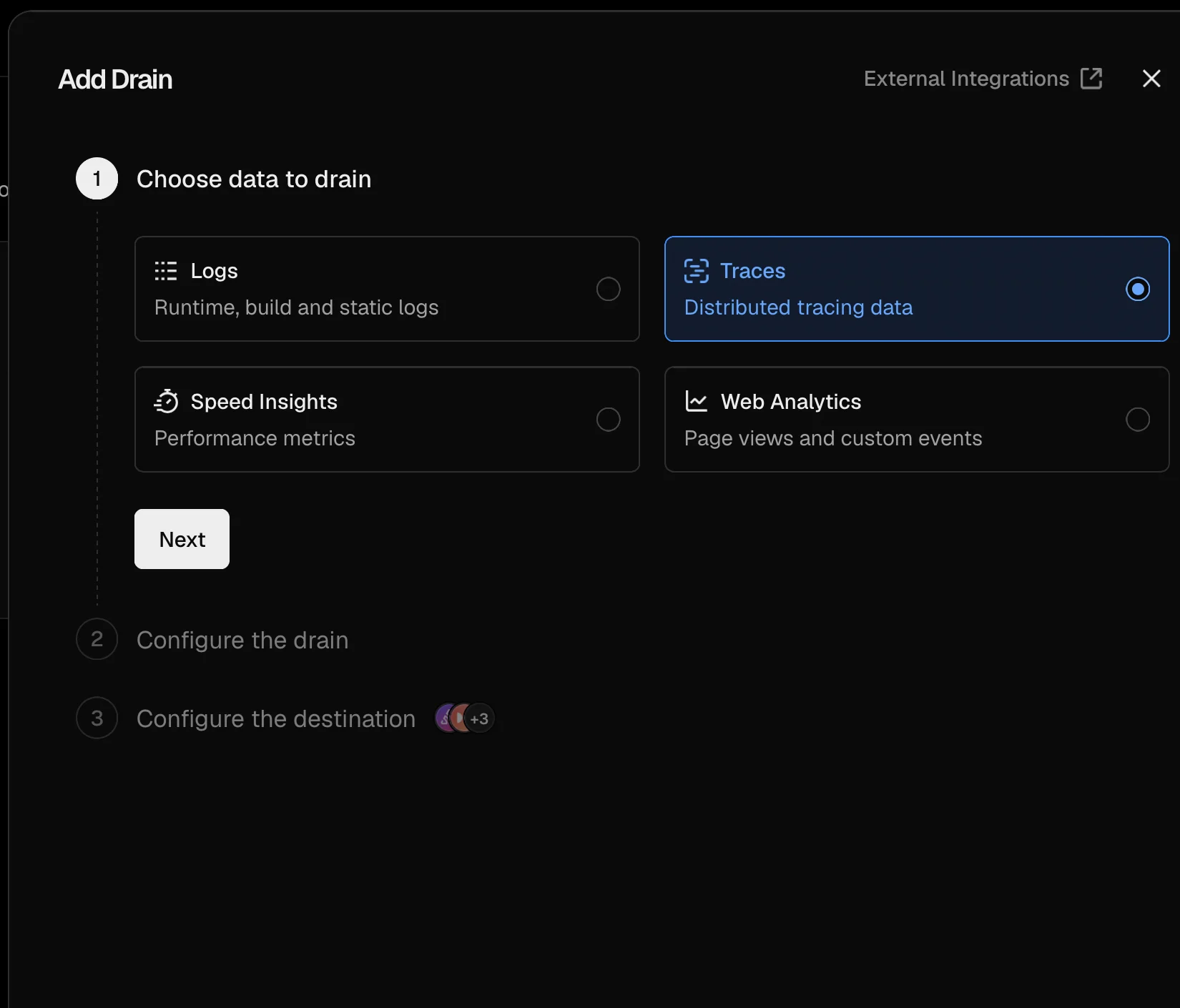
Vercel's Add Drain dialog — step 1, choosing the data type to drain.
Speed Insights and Web Analytics are not supported by Aient — they are not
error telemetry and carry no crash signal. Choose only Logs or Traces.
Step 2 — Configure the drain
Name the drain, choose which projects send data, and optionally add sampling rules per environment.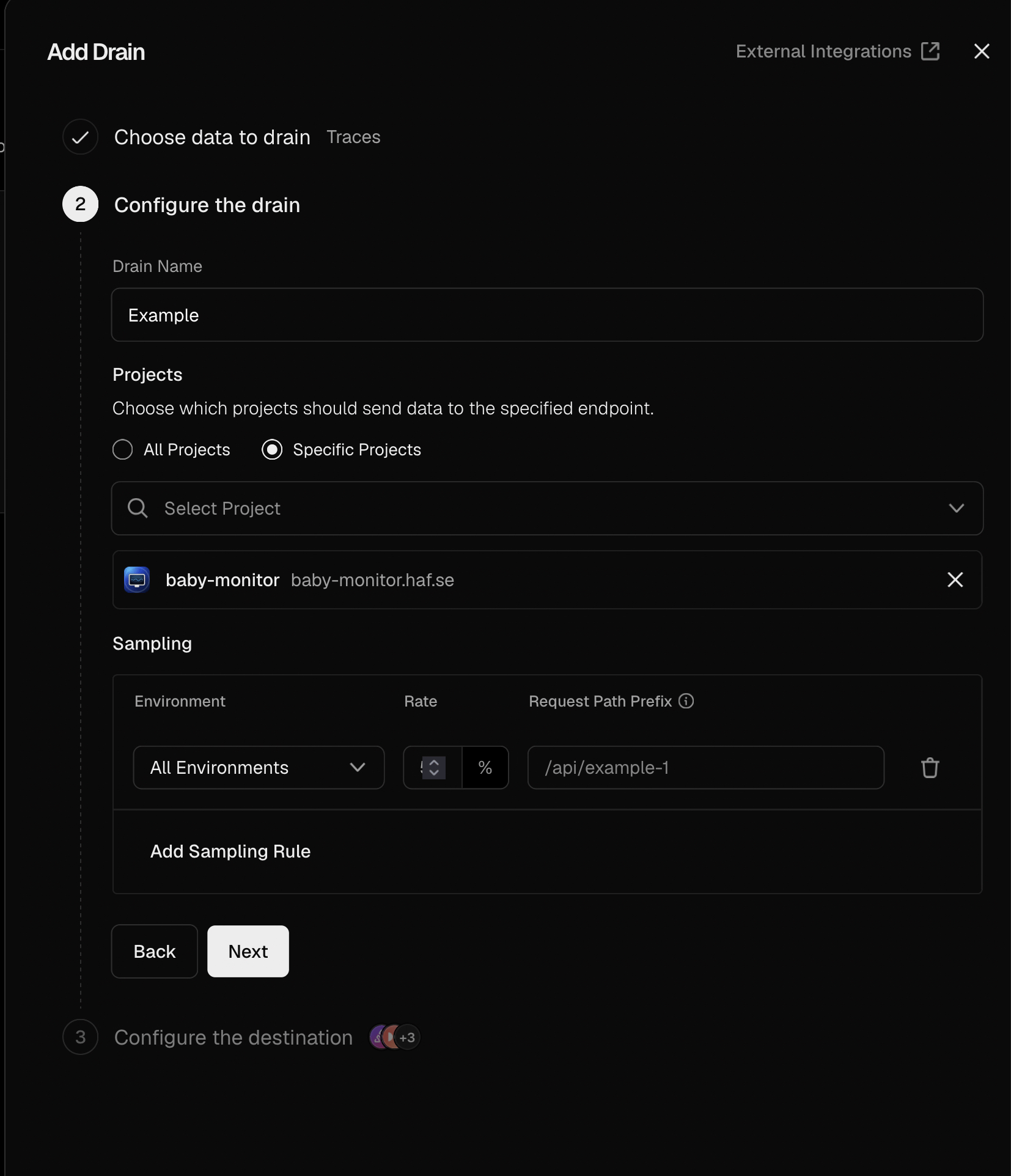
Vercel's Add Drain dialog — step 2, configuring projects, environments and sampling.
- Projects — start with the specific projects you want Aient watching.
- Environment — start with
production. Addpreviewlater if you want preview deployments covered too. - Sampling — leave sampling at 100% for launch so nothing is dropped while you
confirm the connection works. Once telemetry is flowing, you can lower the rate (for
example to 10%) and pin noisy paths like
/docsto a low percentage.
Step 3 — Configure the destination (Custom Endpoint)
Choose Custom Endpoint and fill in: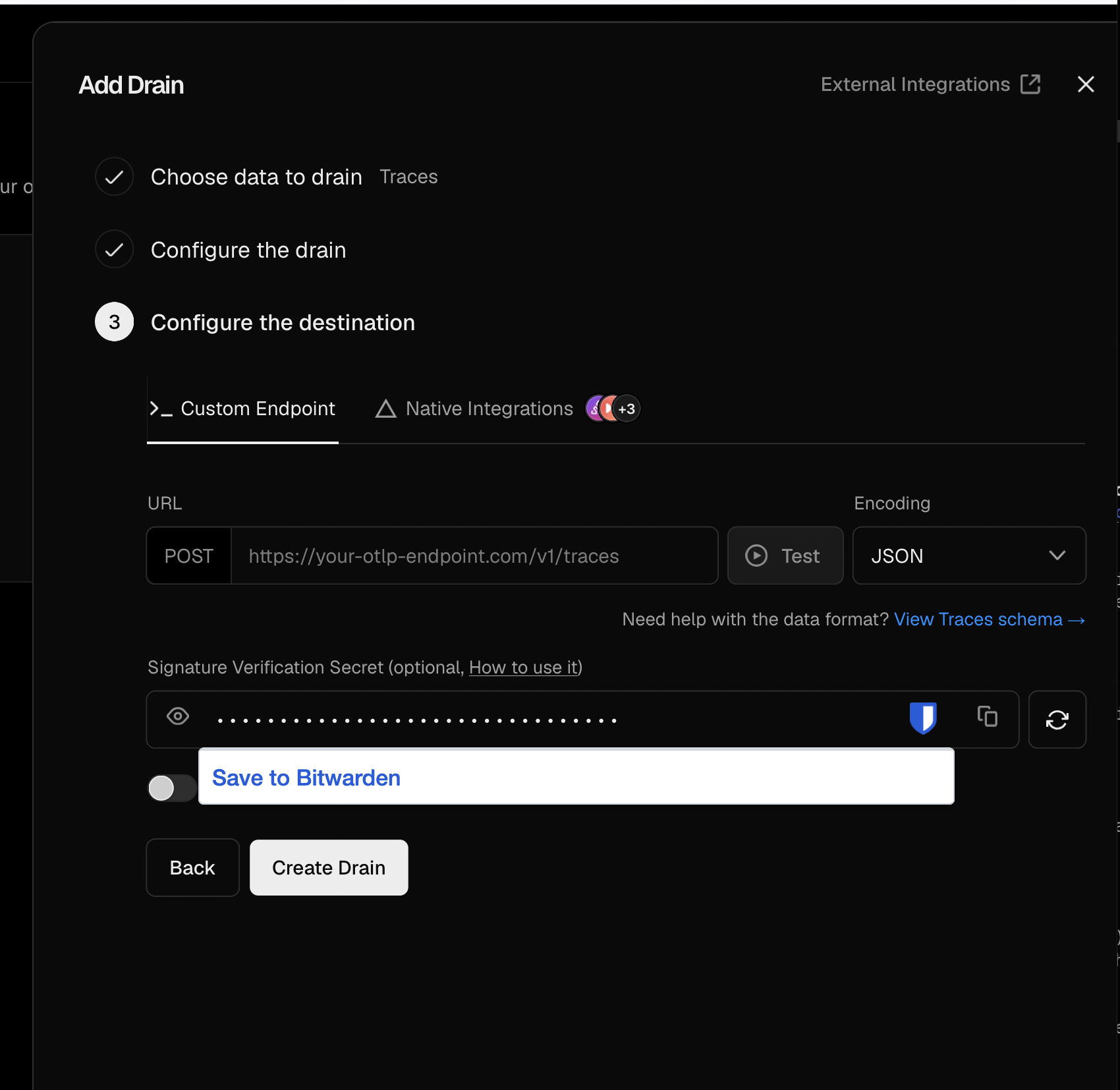
Vercel's Add Drain dialog — step 3, configuring a Custom Endpoint destination with URL, encoding, Test, and Signature Verification Secret.
- URL — paste the Aient Drain URL for this data type (the
…/logsURL on a Logs drain, the…/tracesURL on a Traces drain). - Encoding — for Traces, either
JSONorProtobufworks; Aient accepts both. For Logs, use Vercel’s default. - Signature Verification Secret — paste the Aient Signature Verification Secret.
Always set the secret. It lets Aient verify each request and reject anything that isn’t from your Vercel project.
- Click Test. Vercel sends a sample request to the Aient URL; a success confirms the URL and secret are correct.
- Click Create Drain.
What to expect in Aient
Once the Drain is live and your app produces telemetry:- Telemetry arrives. Logs and traces land in Aient, stamped to your organisation and environment. Back in Settings → Environments → Vercel Drains, each drain shows a health indicator — Receiving once valid data is flowing, or Signature failing if requests arrive but the signature doesn’t verify (usually a stale secret in Vercel — rotate and re-paste).
- Problems appear. Error- and fatal-level logs, and trace errors, are grouped into problems — the same pipeline as Aient’s SDK ingest. No extra setup.
- Root cause + fix PR. For crash-class problems that resolve to a stack frame in a repo Aient can read, Aient investigates the root cause and opens a reviewed GitHub pull request. You review and merge; Aient then watches production to confirm the fix held, and reopens the problem if it regresses.
A note on symbolication. Vercel log records carry no git commit SHA, so log-sourced
exceptions may symbolicate less precisely than your trace or SDK telemetry. Aient still
ingests them and still produces problems; it just degrades gracefully to raw frames when
the SHA is absent. For the sharpest stack traces, upload source maps
and lean on trace ingestion, where deployment context is preserved.
FAQ
Do I need to install an SDK to use a Vercel Drain?
Do I need to install an SDK to use a Vercel Drain?
No. A Drain forwards telemetry Vercel already collects. This is the near-zero
instrumentation path: configure the Drain in Vercel, paste the Aient URL and secret,
and data flows. You can still add the Aient SDK later for richer, app-level spans.
Logs vs. Traces — which Drain should I create?
Logs vs. Traces — which Drain should I create?
Create both for full coverage. Logs carry your Vercel function output, including
error and fatal records that surface crash-class problems. Traces carry
OpenTelemetry spans with distributed context. Each is a separate Drain because Vercel
allows one data type per drain.
Why does Aient verify a signature?
Why does Aient verify a signature?
Your Drain URL identifies your organisation, and the Signature Verification Secret
proves each request actually came from your Vercel project. Vercel signs every request
with an HMAC-SHA1 of the raw request body and sends it in the
x-vercel-signature
header; Aient recomputes that HMAC with your secret and rejects anything that doesn’t
match (a constant-time compare, fail-closed) — so a leaked URL alone can’t be used to
inject telemetry.What wire format does the data arrive in?
What wire format does the data arrive in?
Logs arrive as newline-delimited / concatenated JSON objects (one log record per
line) and Aient normalises them into OpenTelemetry log records. Traces arrive as
OpenTelemetry over OTLP/HTTP — in
JSON or Protobuf, your choice — and Aient passes
them through, keeping the vercel.projectId and vercel.deploymentId context Vercel
attaches.Will this reduce my MTTR?
Will this reduce my MTTR?
That’s the goal. Aient collapses the slow part of an incident — triage and writing
the fix — into an automated root cause analysis that ends in a ready-to-review pull
request. The Drain removes the instrumentation step, so a Vercel app can reach
closed-loop AI incident management quickly.
Can I control how much data Vercel sends?
Can I control how much data Vercel sends?
Yes, entirely from Vercel. Scope Drains per project and per environment, choose which
log sources to forward, and use sampling rules to cap volume. Start at 100% to confirm
the connection, then tighten. Remember that once any sampling rule exists, non-matching
requests are dropped.
Does Aient support Speed Insights or Web Analytics drains?
Does Aient support Speed Insights or Web Analytics drains?
No. Aient ingests Logs and Traces only — those carry the error signal Aient
acts on. Speed Insights and Web Analytics are out of scope.
Related
- OpenTelemetry endpoints — the OTLP ingest surface behind Aient.
- Server telemetry quickstart — add the Aient SDK for richer spans.
- Upload source maps — resolve minified frames to original source.