> ## Documentation Index
> Fetch the complete documentation index at: https://docs.aient.ai/llms.txt
> Use this file to discover all available pages before exploring further.
# Send Vercel logs & traces to Aient with a Drain
> Connect a Vercel custom-endpoint Drain to Aient to ingest Vercel function logs and OTLP traces with near-zero instrumentation. Aient turns crash-class errors into reviewed GitHub fix PRs — reducing MTTR with automated root cause analysis.
# Send Vercel logs & traces to Aient with a Drain
A Vercel **Drain** forwards your project's observability data to any HTTPS endpoint.
Point one at Aient and your Vercel function logs and traces flow straight into Aient's
detection and remediation loop — no SDK to install, no code to change.
Aient reads the stack traces inside your Vercel function errors, groups them into
problems, finds the root cause against your source code, and opens a reviewed GitHub
pull request with the fix. The Drain is the fastest way to get there: near-zero
instrumentation, and it reuses telemetry Vercel already collects.
A Drain carries **one data type each**. To send both logs and traces, you add two
Drains — one for **Logs**, one for **Traces** — each pointed at its own Aient URL.
## What you get
* **Logs → crash-class problems.** Vercel function logs (`lambda`, `edge`, `build`,
and more) arrive in Aient. Error- and fatal-level records surface as problems, and
the stack traces inside them feed automated root cause analysis.
* **Traces → distributed context.** Vercel sends traces as OpenTelemetry over OTLP/HTTP.
Aient ingests them as-is, keeping the project and deployment context Vercel attaches.
* **Closed-loop remediation.** Once a crash-class problem is detected, Aient investigates
and opens a GitHub pull request with the fix. You review and merge — Aient never merges
for you.
## Prerequisites
* A Vercel project emitting logs and/or traces.
* A Vercel **Pro** or **Enterprise** plan. Per [Vercel's Drains docs](https://vercel.com/docs/drains#usage-and-pricing),
Drains are available on Pro and Enterprise; Hobby and Pro Trial plans must upgrade to Pro
first. Vercel bills Drains volume separately on its side.
* An Aient account with an environment to receive the data.
* A per-environment **Drain URL** and **Signature Verification Secret** from Aient
(see [Get your Drain URL and secret](#get-your-drain-url-and-secret)).
## Get your Drain URL and secret
In Aient, go to **Settings → Environments**, open the environment you want Vercel data to
land in, and select the **Vercel Drains** tab. Click **Add drain**, choose the **data
type** (**Logs** or **Traces**), and create it. Aient then shows you, **once**:
* A **Drain URL** — a per-organisation, per-data-type endpoint on the Aient ingest
domain (`ingest.aient.ai`), served by the native Vercel-drain receiver. It looks like:
```txt theme={"theme":{"light":"github-light","dark":"github-dark"}}
https://ingest.aient.ai/vercel//logs
https://ingest.aient.ai/vercel//traces
```
The Drain URL contains a secret token. Treat the whole URL as a credential: send it
over HTTPS only, never commit it, and never paste it into a public issue.
* A **Signature Verification Secret** — an HMAC secret you paste into Vercel's "Signature
Verification Secret" field. Aient uses it to verify that every Drain request genuinely
came from your Vercel project before accepting the data.
**The signing secret is shown once and cannot be retrieved later.** Copy both the URL
and the secret before closing the dialog. If you lose the secret, use **Rotate** on the
drain to mint a fresh URL + secret pair (and update Vercel with the new values). You can
also **Revoke** a drain — a confirmation-gated action that immediately stops accepting
its traffic.
Create one drain for **Logs** and one for **Traces** (they are separate drains with
separate tokens), then copy each pair before you start the Vercel steps below.
## Set up the Drain in Vercel
In your Vercel dashboard, go to **Settings → Drains → Add Drain** and follow the three
steps. Repeat the whole flow once for **Logs** and once for **Traces**.
### Step 1 — Choose the data type
Pick **Logs** or **Traces**. These are the two types Aient ingests.
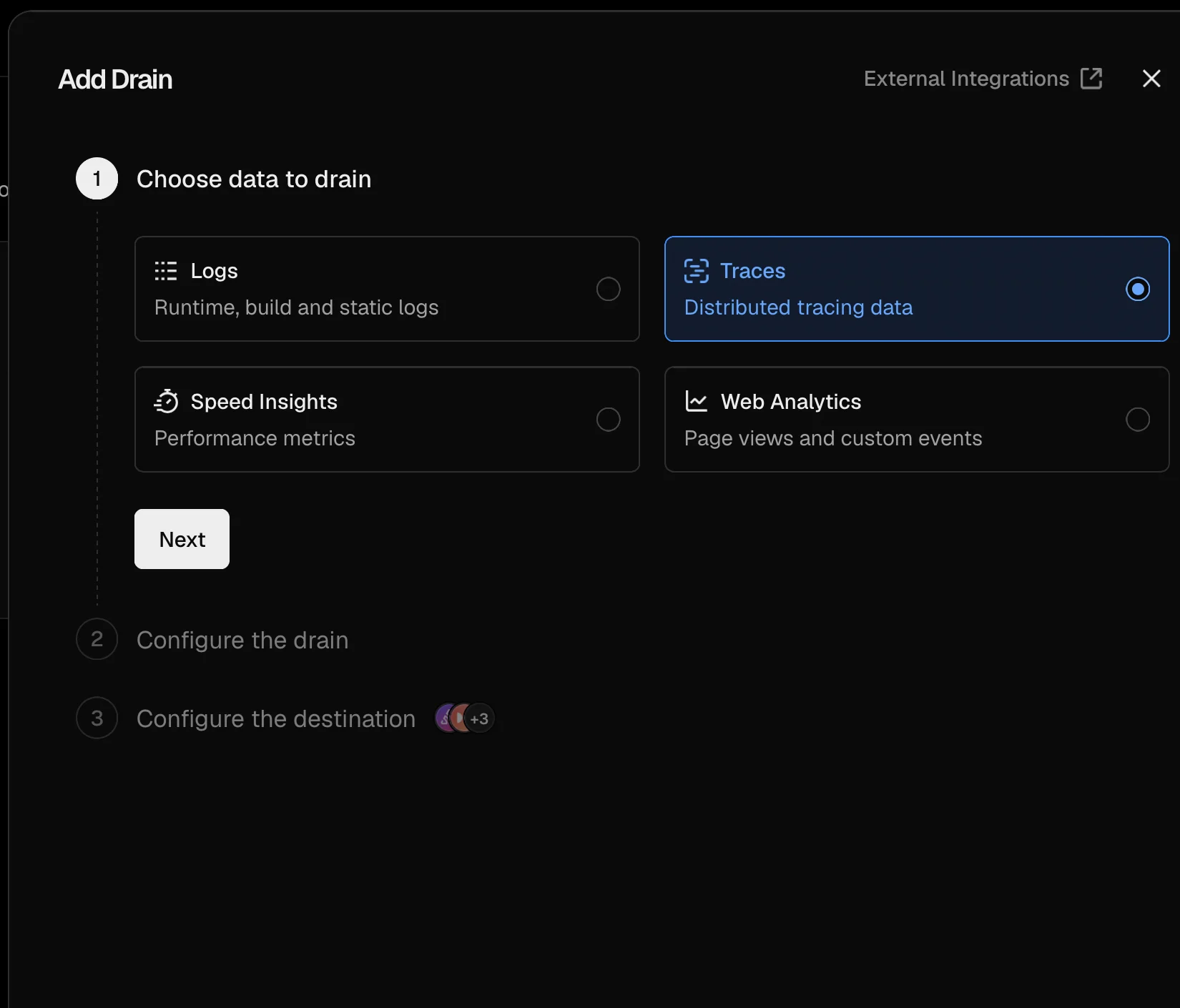 **Speed Insights** and **Web Analytics** are **not** supported by Aient — they are not
error telemetry and carry no crash signal. Choose only **Logs** or **Traces**.
Click **Next**.
### Step 2 — Configure the drain
Name the drain, choose which **projects** send data, and optionally add **sampling
rules** per environment.
**Speed Insights** and **Web Analytics** are **not** supported by Aient — they are not
error telemetry and carry no crash signal. Choose only **Logs** or **Traces**.
Click **Next**.
### Step 2 — Configure the drain
Name the drain, choose which **projects** send data, and optionally add **sampling
rules** per environment.
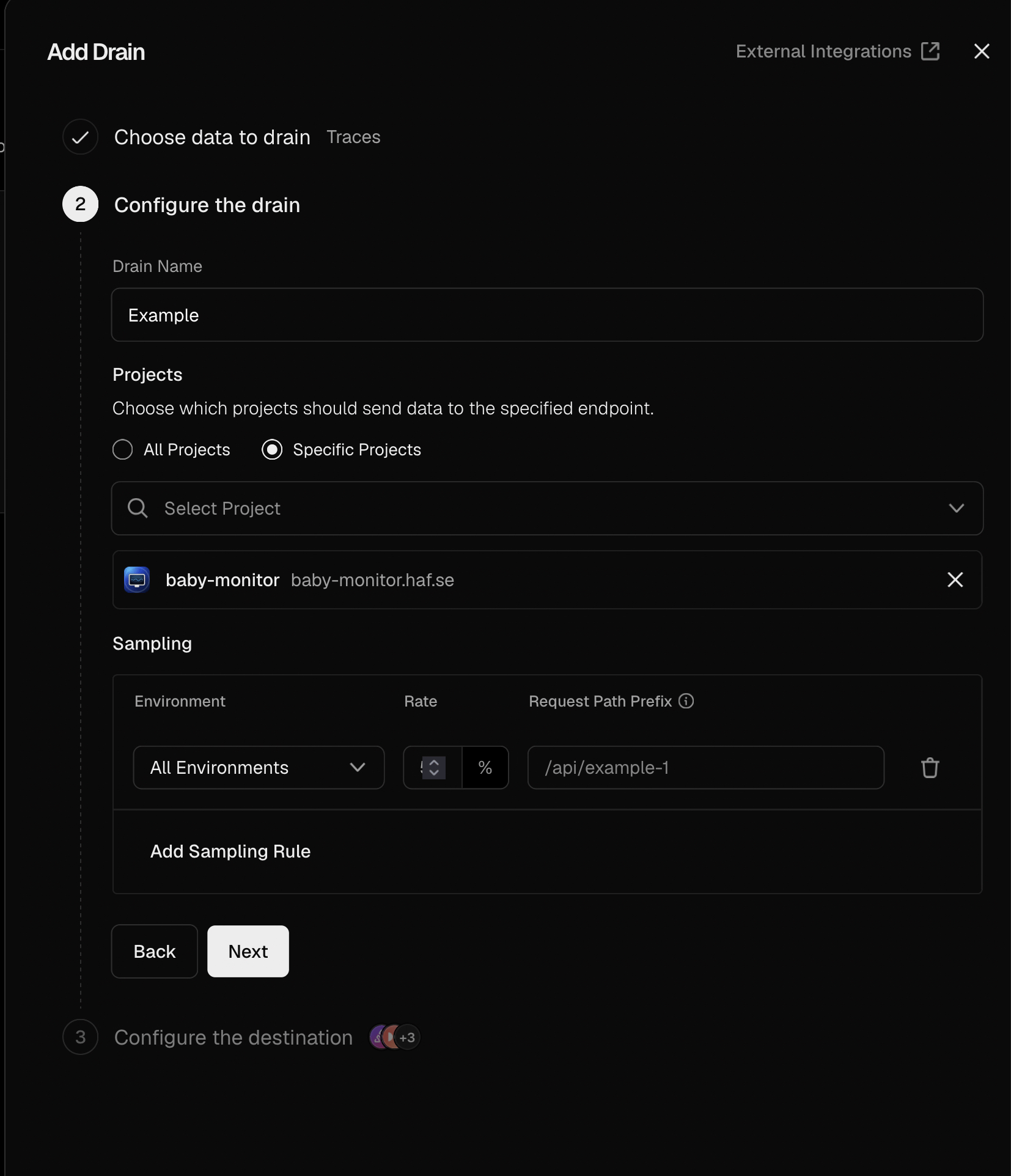 Recommended settings:
* **Projects** — start with the specific projects you want Aient watching.
* **Environment** — start with `production`. Add `preview` later if you want preview
deployments covered too.
* **Sampling** — leave sampling at **100%** for launch so nothing is dropped while you
confirm the connection works. Once telemetry is flowing, you can lower the rate (for
example to 10%) and pin noisy paths like `/docs` to a low percentage.
**Sampling rules drop non-matching requests silently.** With zero rules, Vercel
forwards 100%. As soon as you add **any** rule, requests that don't match a rule are
dropped. Rules are evaluated top-to-bottom, first match wins. Start at 100% and tighten
deliberately.
Click **Next**.
### Step 3 — Configure the destination (Custom Endpoint)
Choose **Custom Endpoint** and fill in:
Recommended settings:
* **Projects** — start with the specific projects you want Aient watching.
* **Environment** — start with `production`. Add `preview` later if you want preview
deployments covered too.
* **Sampling** — leave sampling at **100%** for launch so nothing is dropped while you
confirm the connection works. Once telemetry is flowing, you can lower the rate (for
example to 10%) and pin noisy paths like `/docs` to a low percentage.
**Sampling rules drop non-matching requests silently.** With zero rules, Vercel
forwards 100%. As soon as you add **any** rule, requests that don't match a rule are
dropped. Rules are evaluated top-to-bottom, first match wins. Start at 100% and tighten
deliberately.
Click **Next**.
### Step 3 — Configure the destination (Custom Endpoint)
Choose **Custom Endpoint** and fill in:
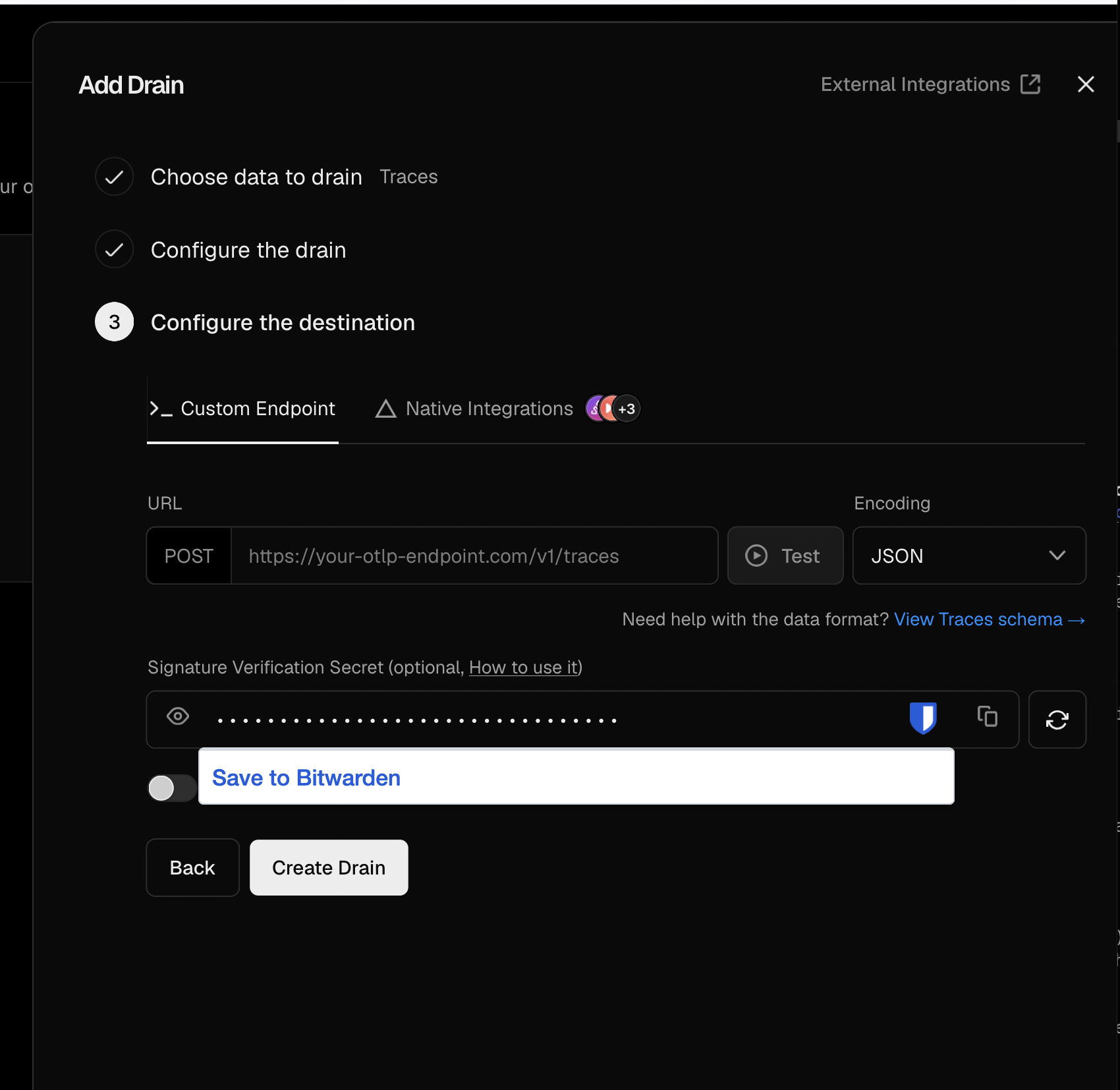 1. **URL** — paste the Aient **Drain URL** for this data type (the `…/logs` URL on a
Logs drain, the `…/traces` URL on a Traces drain).
2. **Encoding** — for **Traces**, either `JSON` or `Protobuf` works; Aient accepts both.
For **Logs**, use Vercel's default.
3. **Signature Verification Secret** — paste the Aient **Signature Verification Secret**.
Always set the secret. It lets Aient verify each request and reject anything that isn't from your Vercel project.
4. Click **Test**. Vercel sends a sample request to the Aient URL; a success confirms the
URL and secret are correct.
5. Click **Create Drain**.
That's it for one data type. Repeat steps 1–3 for the other Drain (Logs or Traces) using
its matching Aient URL.
## What to expect in Aient
Once the Drain is live and your app produces telemetry:
1. **Telemetry arrives.** Logs and traces land in Aient, stamped to your organisation and
environment. Back in **Settings → Environments → Vercel Drains**, each drain shows a
health indicator — **Receiving** once valid data is flowing, or **Signature failing**
if requests arrive but the signature doesn't verify (usually a stale secret in Vercel —
rotate and re-paste).
2. **Problems appear.** Error- and fatal-level logs, and trace errors, are grouped into
problems — the same pipeline as Aient's SDK ingest. No extra setup.
3. **Root cause + fix PR.** For crash-class problems that resolve to a stack frame in a
repo Aient can read, Aient investigates the root cause and opens a reviewed GitHub
pull request. You review and merge; Aient then watches production to confirm the fix
held, and reopens the problem if it regresses.
**A note on symbolication.** Vercel log records carry no git commit SHA, so log-sourced
exceptions may symbolicate less precisely than your trace or SDK telemetry. Aient still
ingests them and still produces problems; it just degrades gracefully to raw frames when
the SHA is absent. For the sharpest stack traces, [upload source maps](/source-maps/upload)
and lean on trace ingestion, where deployment context is preserved.
## FAQ
No. A Drain forwards telemetry Vercel already collects. This is the near-zero
instrumentation path: configure the Drain in Vercel, paste the Aient URL and secret,
and data flows. You can still add the Aient SDK later for richer, app-level spans.
Create both for full coverage. **Logs** carry your Vercel function output, including
error and fatal records that surface crash-class problems. **Traces** carry
OpenTelemetry spans with distributed context. Each is a separate Drain because Vercel
allows one data type per drain.
Your Drain URL identifies your organisation, and the Signature Verification Secret
proves each request actually came from your Vercel project. Vercel signs every request
with an **HMAC-SHA1 of the raw request body** and sends it in the `x-vercel-signature`
header; Aient recomputes that HMAC with your secret and rejects anything that doesn't
match (a constant-time compare, fail-closed) — so a leaked URL alone can't be used to
inject telemetry.
**Logs** arrive as newline-delimited / concatenated JSON objects (one log record per
line) and Aient normalises them into OpenTelemetry log records. **Traces** arrive as
OpenTelemetry over OTLP/HTTP — in `JSON` or `Protobuf`, your choice — and Aient passes
them through, keeping the `vercel.projectId` and `vercel.deploymentId` context Vercel
attaches.
That's the goal. Aient collapses the slow part of an incident — triage and writing
the fix — into an automated root cause analysis that ends in a ready-to-review pull
request. The Drain removes the instrumentation step, so a Vercel app can reach
closed-loop AI incident management quickly.
Yes, entirely from Vercel. Scope Drains per project and per environment, choose which
log sources to forward, and use sampling rules to cap volume. Start at 100% to confirm
the connection, then tighten. Remember that once any sampling rule exists, non-matching
requests are dropped.
No. Aient ingests **Logs** and **Traces** only — those carry the error signal Aient
acts on. Speed Insights and Web Analytics are out of scope.
## Related
* [OpenTelemetry endpoints](/reference/otlp-endpoints) — the OTLP ingest surface behind Aient.
* [Server telemetry quickstart](/quickstart/server) — add the Aient SDK for richer spans.
* [Upload source maps](/source-maps/upload) — resolve minified frames to original source.
1. **URL** — paste the Aient **Drain URL** for this data type (the `…/logs` URL on a
Logs drain, the `…/traces` URL on a Traces drain).
2. **Encoding** — for **Traces**, either `JSON` or `Protobuf` works; Aient accepts both.
For **Logs**, use Vercel's default.
3. **Signature Verification Secret** — paste the Aient **Signature Verification Secret**.
Always set the secret. It lets Aient verify each request and reject anything that isn't from your Vercel project.
4. Click **Test**. Vercel sends a sample request to the Aient URL; a success confirms the
URL and secret are correct.
5. Click **Create Drain**.
That's it for one data type. Repeat steps 1–3 for the other Drain (Logs or Traces) using
its matching Aient URL.
## What to expect in Aient
Once the Drain is live and your app produces telemetry:
1. **Telemetry arrives.** Logs and traces land in Aient, stamped to your organisation and
environment. Back in **Settings → Environments → Vercel Drains**, each drain shows a
health indicator — **Receiving** once valid data is flowing, or **Signature failing**
if requests arrive but the signature doesn't verify (usually a stale secret in Vercel —
rotate and re-paste).
2. **Problems appear.** Error- and fatal-level logs, and trace errors, are grouped into
problems — the same pipeline as Aient's SDK ingest. No extra setup.
3. **Root cause + fix PR.** For crash-class problems that resolve to a stack frame in a
repo Aient can read, Aient investigates the root cause and opens a reviewed GitHub
pull request. You review and merge; Aient then watches production to confirm the fix
held, and reopens the problem if it regresses.
**A note on symbolication.** Vercel log records carry no git commit SHA, so log-sourced
exceptions may symbolicate less precisely than your trace or SDK telemetry. Aient still
ingests them and still produces problems; it just degrades gracefully to raw frames when
the SHA is absent. For the sharpest stack traces, [upload source maps](/source-maps/upload)
and lean on trace ingestion, where deployment context is preserved.
## FAQ
No. A Drain forwards telemetry Vercel already collects. This is the near-zero
instrumentation path: configure the Drain in Vercel, paste the Aient URL and secret,
and data flows. You can still add the Aient SDK later for richer, app-level spans.
Create both for full coverage. **Logs** carry your Vercel function output, including
error and fatal records that surface crash-class problems. **Traces** carry
OpenTelemetry spans with distributed context. Each is a separate Drain because Vercel
allows one data type per drain.
Your Drain URL identifies your organisation, and the Signature Verification Secret
proves each request actually came from your Vercel project. Vercel signs every request
with an **HMAC-SHA1 of the raw request body** and sends it in the `x-vercel-signature`
header; Aient recomputes that HMAC with your secret and rejects anything that doesn't
match (a constant-time compare, fail-closed) — so a leaked URL alone can't be used to
inject telemetry.
**Logs** arrive as newline-delimited / concatenated JSON objects (one log record per
line) and Aient normalises them into OpenTelemetry log records. **Traces** arrive as
OpenTelemetry over OTLP/HTTP — in `JSON` or `Protobuf`, your choice — and Aient passes
them through, keeping the `vercel.projectId` and `vercel.deploymentId` context Vercel
attaches.
That's the goal. Aient collapses the slow part of an incident — triage and writing
the fix — into an automated root cause analysis that ends in a ready-to-review pull
request. The Drain removes the instrumentation step, so a Vercel app can reach
closed-loop AI incident management quickly.
Yes, entirely from Vercel. Scope Drains per project and per environment, choose which
log sources to forward, and use sampling rules to cap volume. Start at 100% to confirm
the connection, then tighten. Remember that once any sampling rule exists, non-matching
requests are dropped.
No. Aient ingests **Logs** and **Traces** only — those carry the error signal Aient
acts on. Speed Insights and Web Analytics are out of scope.
## Related
* [OpenTelemetry endpoints](/reference/otlp-endpoints) — the OTLP ingest surface behind Aient.
* [Server telemetry quickstart](/quickstart/server) — add the Aient SDK for richer spans.
* [Upload source maps](/source-maps/upload) — resolve minified frames to original source.